Fraud Blocker Barco MDNC-12130 KVM Setup & 6MP Dual Display Partitioning Guide (PACS Ready) Skip to content
Sign in
Main Menu

  • sale

  • Technical Resources
  • About Monitors.com
  • Contact Us
  • Sign in
  • USD $
  • English
  • Medical Displays
  • General Radiology Displays
  • Mammography Displays
  • Clinical Review Displays
  • Surgical Displays
  • Pathology Displays
  • View All Medical Display Monitors
  • Medical Displays by Brand
  • Barco
  • Eizo
  • JVC
  • LG
  • NEC
  • Steris
  • Sony
  • Arthrex
  • Ikegami
  • NDS
  • Panasonic
  • WIDE
  • Professional Displays
  • 4K Monitors
  • Touch Screen Monitors
  • View All Professional Displays
  • Workstations by Type
  • Desktop Workstations
  • Mobile Workstations
  • Rack Workstations
  • View All Workstations
  • Workstations by Brand
  • HP Workstations
  • Lenovo Workstations
  • Dell Workstations
  • Workstations by Processor
  • Intel Xeon Processors
  • Intel Core i-Series Processors
  • AMD ThreadRipper Pro Processors
  • Workstations by Size
  • Tower
  • Small Form Factor (SFF)
  • Modality
  • General Radiology Reading Stations
  • Mammography Reading Stations
  • View All Reading Stations
  • Reading Stations by Condition
  • New Reading Stations
  • Renewed Reading Stations
  • Reading Stations by Brand
  • Barco Reading Stations
  • Eizo Reading Stations
  • JVC Reading Stations
  • LG Reading Stations
  • NEC Reading Stations
  • Graphics Card by Brand
  • Barco Graphics Cards
  • NVIDIA Graphics Cards
  • AMD Graphics Cards
  • View All Graphics Cards
  • Graphics Card by Memory
  • 4GB
  • 6GB
  • 8GB
  • 12GB
  • 16GB
  • 20GB
  • 24GB
  • 32GB
  • 48GB
  • Dictation Microphones by Brand
  • Nuance Dictation Mics
  • Philips Diction Mics
  • Dictation Microphones by Type
  • Wired Dictation Mics
  • Wireless Dictation Mics
  • Headset Wireless Dictation Mics
  • View All Microphones
  • Microphone Accessories
  • Nuance Accessories
  • Philips Accessories
  • View All Microphone Accessories
  • Voice Recognition Software and Licenses
  • Voice Recognition Software and Licenses
  • Medical Monitor Accessories
  • Power Adapters
  • Calibration Kits
  • Workstation Accessories
  • Keyboards
  • Mice
  • Wifi Adapters
  • Webcams
  • KVM Switches
  • Docking Stations & Hubs
  • Document Scanners
  • Mouse Pads & Wrist Rests
  • Eyewear
  • Cables and Adapters
  • Ethernet Cables & Adapters
  • DVI Cables & Adapters
  • HDMI Cables & Adapters
  • USB Cables & Adapters
  • USB-C Cables & Adapters
  • DisplayPort Cables & Adapters
  • Mini DisplayPort Cables & Adapters
  • Thunderbolt Cables & Adapters
  • Power Cords
  • UPS Backups & Surge Protectors
  • UPS Backup Batteries
  • Surge Protectors
  • Other Products
  • Medical Film Scanners
  • Vidar Medical Film Digitizers
  • Medical Film Document Scanning Solution
  • Medical Film Scanning Software
  • Business Class Scanners
  • High-Speed Duplex Document Scanners
Monitors.com Monitors.com Logo

Quick Links

Technical Resources About Monitors.com Contact Us SALE

How to Set Up KVM and Dual 6MP Display Partitioning on the Barco® MDNC-12130 (Nio Fusion 12MP)

Mar 31, 2026
How to Set Up KVM and Dual 6MP Display Partitioning on the Barco MDNC-12130 (Nio Fusion 12MP)
Radiology Workflow Guide

How to Set Up KVM and Dual 6MP Display Partitioning on the Barco® MDNC-12130 (Nio Fusion 12MP)

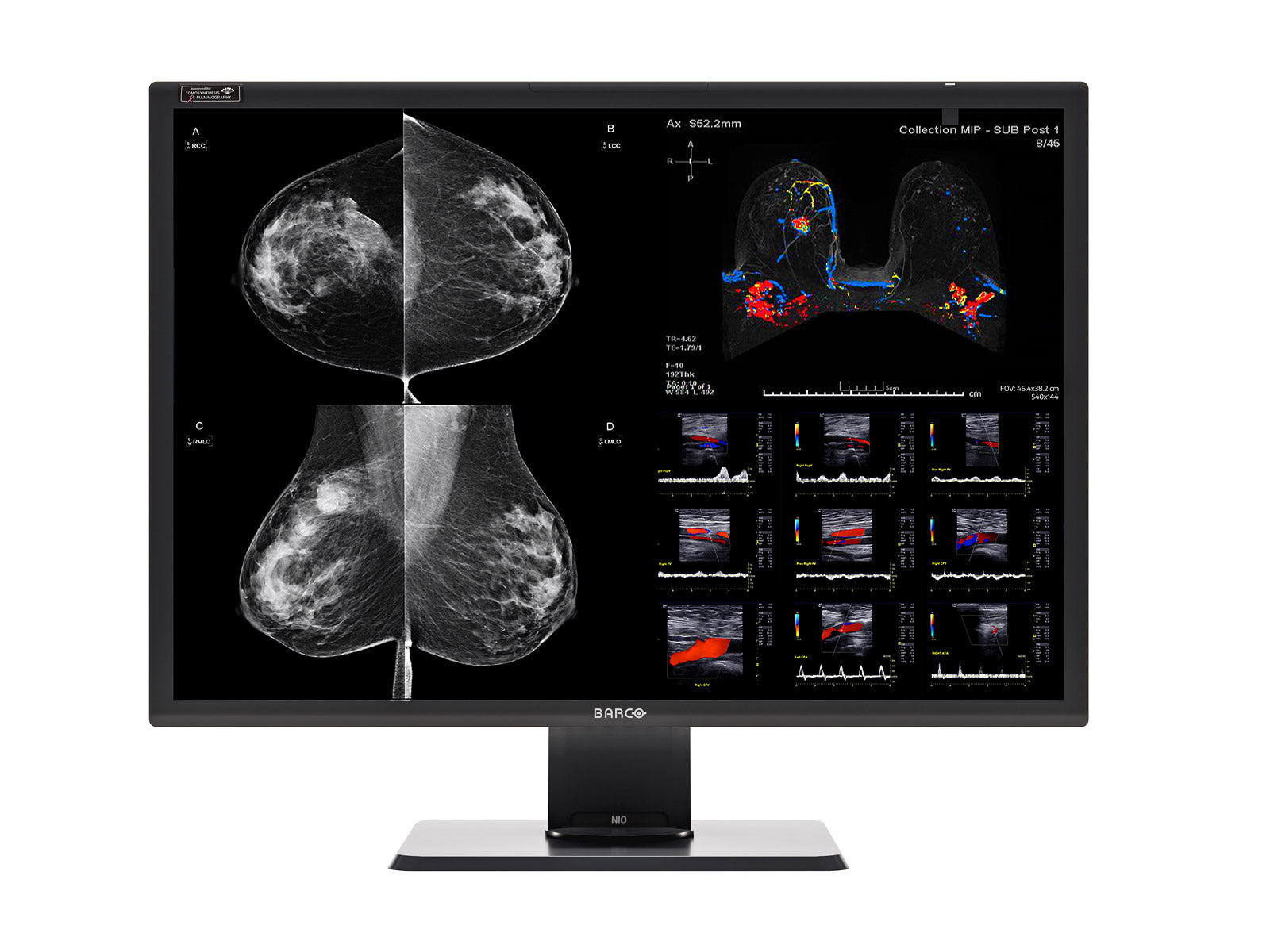
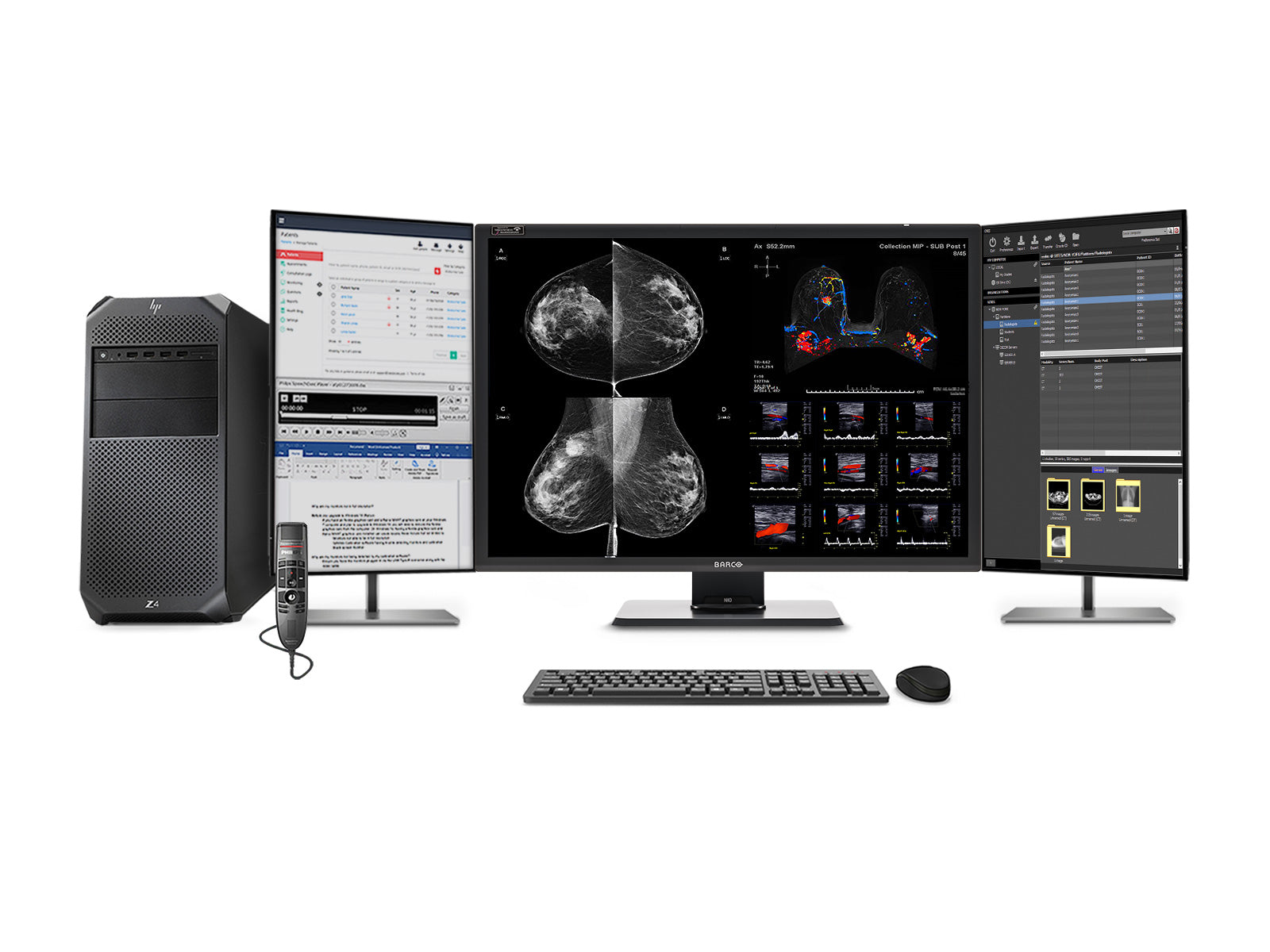
This guide walks you through configuring KVM switching and dual-screen 6MP + 6MP partitioning on the Barco® MDNC-12130 using two workstations equipped with MXRT-6700 graphics cards.

This configuration is ideal for PACS environments where hanging protocols expect two displays, while still taking advantage of a single 12MP diagnostic monitor.

Overview of the Setup

Dual Workstations Two independent systems connected to one display.
KVM Switching Shared keyboard and mouse control across both workstations.
Full 12MP Signal One DisplayPort cable per workstation for high-resolution imaging.
Dual 6MP Partitioning Side-by-side virtual displays optimized for PACS workflows.

Step 1: Connect Video and USB (KVM Wiring)

Video connections

  • PC1 → DP IN 1 on the monitor
  • PC2 → DP IN 2 on the monitor

USB upstream connections (required for KVM)

  • PC1 → USB UP 1
  • PC2 → USB UP 2
Note: USB UP 2 may have a protective cap. Remove it before connecting the cable.

Shared peripherals

  • Keyboard → monitor USB downstream port
  • Mouse → monitor USB downstream port

This enables the display to switch both keyboard and mouse control between workstations.

Step 2: Power On the System

  1. Turn on the monitor using the rear power switch and set it to “I”.
  2. Press the jog dial to power on the display.
  3. Turn on both workstations.

Step 3: Configure EDID for 12MP Operation

To ensure each workstation can drive the display at full resolution over a single DisplayPort cable:

  1. Open the monitor menu using the jog dial.
  2. Go to Configuration → Image Sources → Input Settings → EDID format.
  3. Set EDID format to DisplayID 1.3.

DisplayPort 1

Path: Configuration → Image Sources → Input Settings → DisplayPort 1 → EDID → Resolution

Set to: 12MP

DisplayPort 2

Path: Configuration → Image Sources → Input Settings → DisplayPort 2 → EDID → Resolution

Set to: 12MP

Step 4: Verify DisplayPort Version

Ensure both inputs are configured to use DP 1.2.

DisplayPort 1

Path: Configuration → Image Sources → Input Settings → DisplayPort 1 → Input Interface Standard Version

Set to: DP 1.2

DisplayPort 2

Path: Configuration → Image Sources → Input Settings → DisplayPort 2 → Input Interface Standard Version

Set to: DP 1.2

Step 5: Enable KVM Switching

  1. Open the monitor OSD menu.
  2. Go to Configuration → Image Sources → KVM Input Selection.
  3. Set the option to Enabled.

How to switch between PCs

  • Double-press the jog dial.
  • The first press opens the shortcut menu.
  • The second press switches the KVM input.

Video switches immediately. USB devices may take up to 2 seconds to follow.

Step 6: Configure Display Partitioning (Critical for PACS)

To emulate a dual-monitor environment required by many PACS platforms, split the 12MP display into two 6MP side-by-side displays using Barco® software.

On each workstation

  1. Right-click on the desktop.
  2. Open Barco® System Settings.
  3. Go to Display → Display Partitioning.
  4. Select a 2-way vertical split (side-by-side).
Left Partition 6MP virtual display
Right Partition 6MP virtual display

Once enabled, each workstation sees two independent displays instead of one. This is especially useful for PACS hanging protocols designed for dual-monitor workflows.

Step 7: Verify on Each Workstation

Open Windows Display Settings or Barco® tools and confirm the following:

  • Two displays are detected.
  • Each display is approximately 2100 × 2800 pixels (6 MP).
  • The arrangement is side-by-side.

Important Notes

Resolution and refresh rate

  • Each workstation runs at full 4200 × 2800 (12MP).
  • In dual-workstation KVM mode, the refresh rate is limited to approximately 45 Hz.

QAWeb recommendation

  • Install QAWeb on only one workstation.
  • Installing it on both systems may create conflicts when switching between workstations.

Final Configuration Summary

Component PC1 PC2
Video DP → DP IN 1 DP → DP IN 2
USB USB → USB UP 1 USB → USB UP 2

Monitor settings

  • EDID format → DisplayID 1.3
  • DP1 resolution → 12MP
  • DP2 resolution → 12MP
  • DP version → 1.2
  • KVM → Enabled

Software settings on both PCs

  • Open Barco® System Settings
  • Go to Display Partitioning
  • Select 2-way vertical split (Barco® MXRT series graphics card required for Display Partitioning)

Common Troubleshooting

Keyboard or mouse not switching

Check that both USB upstream cables are connected to the correct monitor ports.

No 12MP resolution available

Confirm that EDID format is set to DisplayID 1.3.

PACS not detecting dual screens

Verify that Display Partitioning has been configured in Barco® System Settings.

One system is not responding to KVM

Check for a missing USB upstream cable or an incorrect upstream port connection.

Conclusion

With this configuration, you can switch seamlessly between two workstations, maintain full 12MP diagnostic display performance, and present the screen as two virtual 6MP displays for PACS compatibility.

This is an effective setup for radiology environments that require both high-resolution imaging and dual-monitor behavior without deploying two separate physical displays.
Share
Next article

Leave a comment

All comments are moderated before being published

Join Us

Subscribe to get special offers and promotions.   

Follow us

Popular posts

  1. 7 Considerations When Choosing a Mammography Display
    7 Considerations When Choosing a Mammography Display
    Oct 05, 2020
  2. What are the Advantages of Medical Display Monitors?
    What are the Advantages of Medical Display Monitors?
    Mar 03, 2021
  3. Why You Need a 5MP (or Higher) Diagnostic Display to Read Mammograms
    Why You Need a 5MP (or Higher) Diagnostic Display to Read Mammograms
    May 02, 2021

Featured Products

Save $9,000 Save $7,000
ribbon-icon
Barco Nio Fusion MDNC-12130 12MP 31" Color Tomosynthesis 3D-DBT Mammography Display.
Barco® Barco® Nio Fusion MDNC-12130 12MP 31" Color Tomosynthesis 3D-DBT Mammography Display
( 2 )
Free Shipping
Available as: New
From $ 12,999 99
$21,999.99
Choose Options
Save $5,500
ribbon-icon
Complete Mammography Reading Station | Barco 12MP MDNC-12130 Color LED Monitors | HP Workstation | Dictation Microphone (LFH3500) | Worklist Monitors (12130Z4G4R)
Barco® Complete Mammography Reading Station | Barco® 12MP MDNC-12130 Color LED Monitors | HP Workstation | Dictation Microphone (LFH3500) | Worklist Monitors (12130Z4G4R)
Free Shipping
$ 13,999 99
$19,499.99
Monitors.com by Bayland
GSA Logo Dun & Bradstreet Logo
All mammography displays offered by Monitors.com are FDA approved
HIPAA Compliant BBB accredited business
  • About Us
  • Contact Us
  • Technical Resources
  • Careers
  • Climate Commitment
  • Sitemap
  • Disclaimer
  • Terms & Conditions
  • Privacy
  • FAQ

Newsletter

Sign up to receive promotional offers!

HIPAA Compliant BBB accredited business

© 2026 Bayland Technologies, Inc.

Follow Us

We Accept

Ach Direct Debit Amazon American Express Apple Pay Bancontact Diners Club Discover Google Pay iDEAL Wero Mastercard Shop Pay Visa
  • Opens in a new window.

Your cart is empty

Compare Products

Close